Chapter 34 · Part 4
WhatsApp Conversations
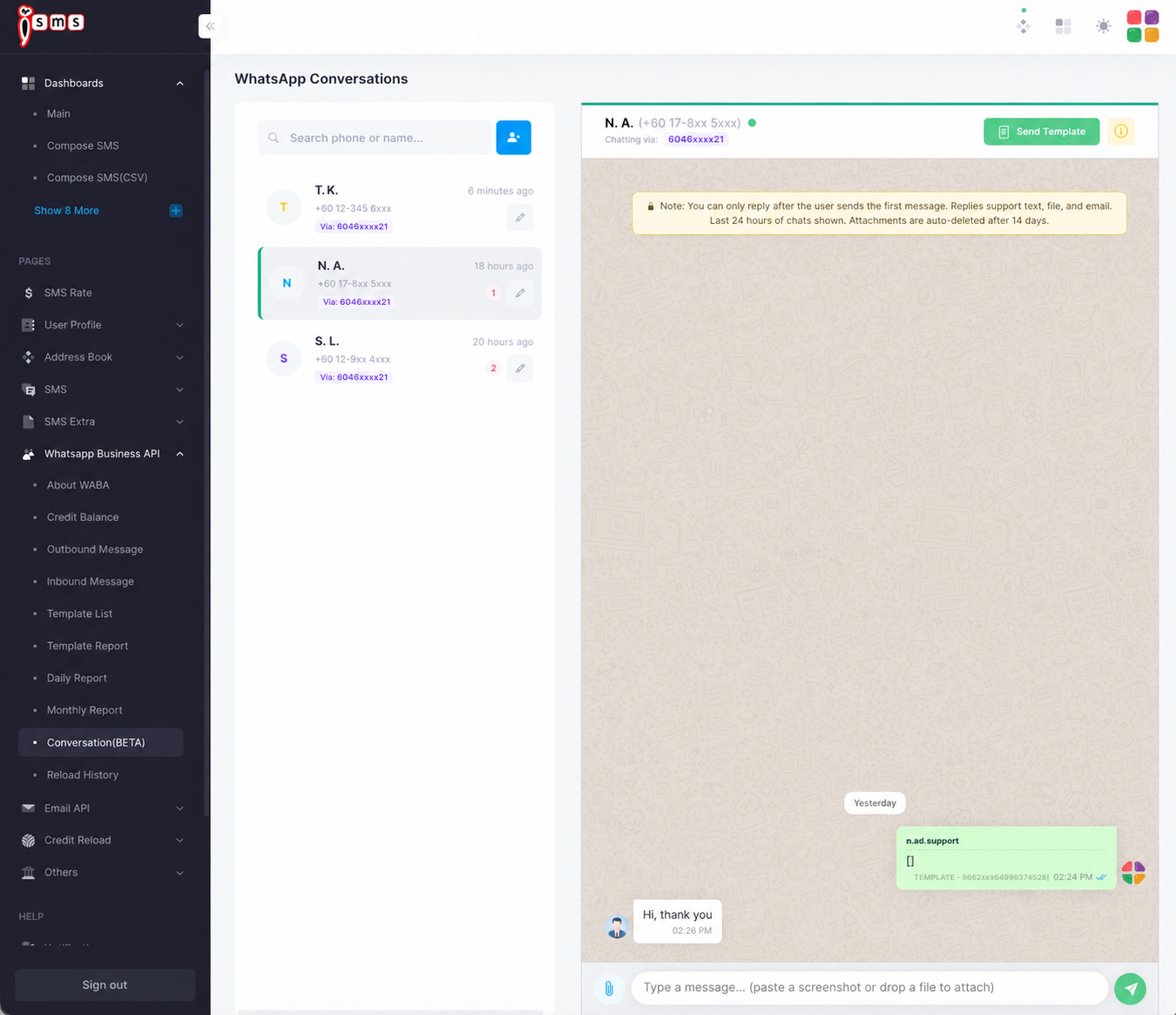
A live two-way inbox for WhatsApp. When a customer messages you, reply in real time — with text, a file, or a template — right inside iSMS. Organise customers with private labels and filter the list to the chats that need you. This feature is in BETA.
Opening the inbox
Go to WhatsApp Business API → Conversation (BETA). The left panel lists your conversations; click one to open the chat on the right.
- Conversation listCustomers who messaged you in the last 7 days. Chats with unread messages are on top, then newest first. Each card shows the unread count, the business number the chat came in through, and the contact’s label.
- Chat threadThe selected conversation. Reply with text or a file; or click Send Template to send an approved template into the chat.
- SearchFind a conversation by full phone number, contact name, or label name.
- ShowAll, Unread or Unreplied — narrow the list to the chats that need attention.
- LabelShow only contacts with one label, such as VIP or Payment Delay.
Find the right conversation
Use the Show buttons under the search box to focus on the chats that need you.
- AllEvery customer who messaged you in the last 7 days.
- UnreadChats with messages you haven’t opened yet. Opening the chat marks them as read. Each login keeps its own read status, so a sub account opening a chat doesn’t clear it for the main account.
- UnrepliedChats where the customer sent the last message and nobody has replied since. These cards also carry an orange Unreplied tag. Any message sent from your account counts as a reply — including Auto Reply and AI Reply messages.
Search, Show and Label work together — for example, Unreplied + Payment Delay lists every overdue customer still waiting for an answer. Your filters stay on as you open each conversation.
Label your contacts
Labels are private tags you create to group customers — VIP, New Lead, Payment Delay and so on. Each contact can have one label, shown in colour on its card and beside the name at the top of the chat.
- 1
Open the contact
Click the pencil icon on a contact card to edit it, or the Add Contact button beside the search box to add a new one.
- 2
Pick or create a label
Choose a label from the Label list. To make a new one, choose + Create new label…, type a name (up to 40 characters), pick a colour and click Add label. If a label with that name already exists, it’s simply selected.
- 3
Save the contact
Click Save Contact. The label appears on the contact card straight away and can now be used in the Label filter and in search.
Some labels teams find useful:
Change, remove or delete a label
- Change a contact’s labelEdit the contact, pick a different label and click Save Contact.
- Remove it from a contactEdit the contact, choose — No label — and click Save Contact.
- Delete a labelEdit any contact, select the label in the list and click the trash icon beside it. The label is removed from every contact that used it; the conversations themselves are not affected.
How the 24-hour window works
The service window
Customer messages
They send the first message
24h window opens
The clock starts
Reply freely
Text, file, or template
Window closes
Send a template to reopen
Free-form replies are only possible while the window is open. After 24 hours of silence, you need an approved template to start a new conversation.