Chapter 40 · Part 5
WhatsApp AI Reply — Overview & Settings
Let AI answer customer questions on your WhatsApp Business number, 24/7 — using only the information you give it. Replies are billed as normal WhatsApp service messages, with no extra AI charge.
How AI Reply answers a message
Every incoming WhatsApp message is handled in one of the ways below. Greetings, menu picks, handoffs and simple acknowledgements are answered instantly without the AI; only real questions go to the AI, which searches just the matching topic in your knowledge bases.
| Customer sends | What happens | AI used |
|---|---|---|
| “Hi”, “Hello”, “Menu” | Your greeting with a numbered menu of topics | No |
| A menu number (e.g. “1”) | The topic is selected; the customer is asked what they would like to know | No |
| A question | The AI answers from the matching knowledge base, in the customer’s language | Yes |
| A question not in your knowledge base | Your fallback message is sent, and the question is listed in the Reply Log | Yes |
| “agent”, “staff”, “human” or “Talk to our team” | Your handoff message; the AI stops and your team takes over | No |
| “MENU”, “EXIT” or “0” | The menu is shown again | No |
| “ok”, “thanks” | No reply is sent — and nothing is charged | No |
The AI Reply pages
Every AI Reply page has the same five tabs across the top:
- SettingsSwitch the AI on or off and set your business profile and ready-made messages — this chapter.
- Knowledge BasesThe information the AI answers from — see AI Reply Knowledge Bases.
- Test AIChat with your AI before customers do — see Test AI Reply.
- Reply LogEvery question and answer, plus the “couldn’t answer” list — see AI Reply Log.
- User ManualQuick help inside the portal.
At the top of the Settings page, choose the Business Number you are setting up — a green dot means the AI is on for that number, grey means it is off. The summary cards then show that number’s figures:
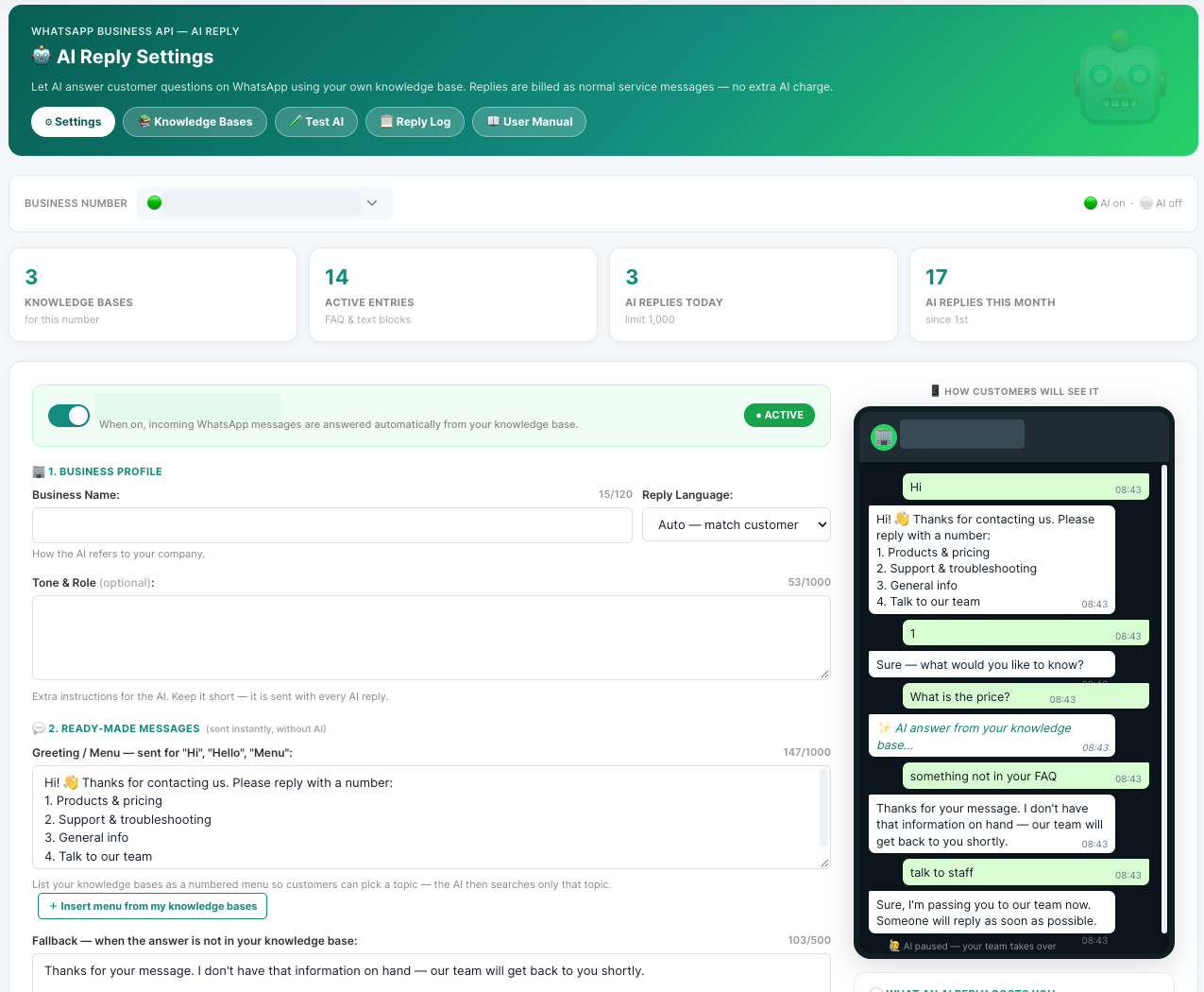
Set up AI Reply
- 1
Business profile
Enter your Business Name — how the AI refers to your company (up to 120 characters). Choose the Reply Language: Auto — match customer replies in English, Bahasa Malaysia or Chinese to match the customer, or pick one fixed language.
- 2
Tone & Role (optional)
A short extra instruction for the AI, for example “Friendly and concise. Mention free installation in the Klang Valley when relevant.” Keep it short — it is sent with every AI reply.
- 3
Greeting / Menu
The message sent when a customer says “Hi”, “Hello” or “Menu”. List your topics as a numbered menu so customers can pick one — the AI then searches only that topic. Click + Insert menu from my knowledge bases to build the list automatically.
- 4
Fallback message
Sent when the answer is not in your knowledge base — e.g. “Thanks for your message. I don’t have that information on hand — our team will get back to you shortly.” The AI never guesses; it sends this instead.
- 5
Handoff & working hours
Further down the page, set the handoff message sent when a customer asks for a person, and — if you don’t want the AI to run 24 hours — its working hours and an outside-hours message.
- 6
Check the preview
The How customers will see it panel on the right shows your greeting, an AI answer, the fallback and a handoff exactly as they appear in WhatsApp.
- 7
Add your knowledge & test
Build your knowledge bases, then try some typical questions in Test AI until the answers look right.
- 8
Switch it on
Turn on the switch at the top of the page. The badge changes to ACTIVE and incoming WhatsApp messages on that number are answered from then on.
When your team takes over
Handoff to your team
Customer asks
“agent” or “Talk to our team”
AI stops
Handoff message sent
Team replies
In the Conversation inbox
Back to AI
Customer types MENU
When your staff reply to a customer, the AI also pauses for that customer for the number of hours you choose — so it never talks over your team.
Your team answers from WhatsApp Conversations, where the AI’s earlier replies are visible in the same chat. You can switch the AI off for a number at any time with the switch at the top of the Settings page.
What AI Reply costs
Good to know
- AI Reply answers only from your knowledge base — it never invents prices, dates, addresses or policies.
- Questions unrelated to your business (recipes, homework, general trivia) are politely not answered.
- It does not look up live data such as order status or stock levels, and does not make bookings or take payments — but it can share your booking or payment link if it is in your knowledge base.
- It only answers incoming messages — broadcasts still use WhatsApp templates.
- Need live order tracking or bookings inside WhatsApp? Ask us about a WhatsApp Automation Flow built by our team.