Chapter 41 · Part 5
AI Reply Knowledge Bases
Your knowledge bases are the only information the AI answers from. Create one per product, service or department — the AI picks the matching one for each question and reads only that, so answers stay focused and accurate.
Opening your knowledge bases
Go to WhatsApp Business API → AI Reply and click the Knowledge Bases tab. The summary cards show how many knowledge bases and entries you have, how much text is stored, and how many business numbers use AI Reply.
How the AI finds the right topic
Menu pick
The customer picks a topic number from your greeting menu. The AI then searches only that knowledge base.
Keyword match
The customer just asks. Their words are matched against each knowledge base’s name, description and keywords — no extra AI step needed.
Default topic
Mark one knowledge base as Default — usually general company info. It is used when nothing else matches.
Only relevant entries
For each question the AI receives only the few entries that match — never your whole knowledge base.
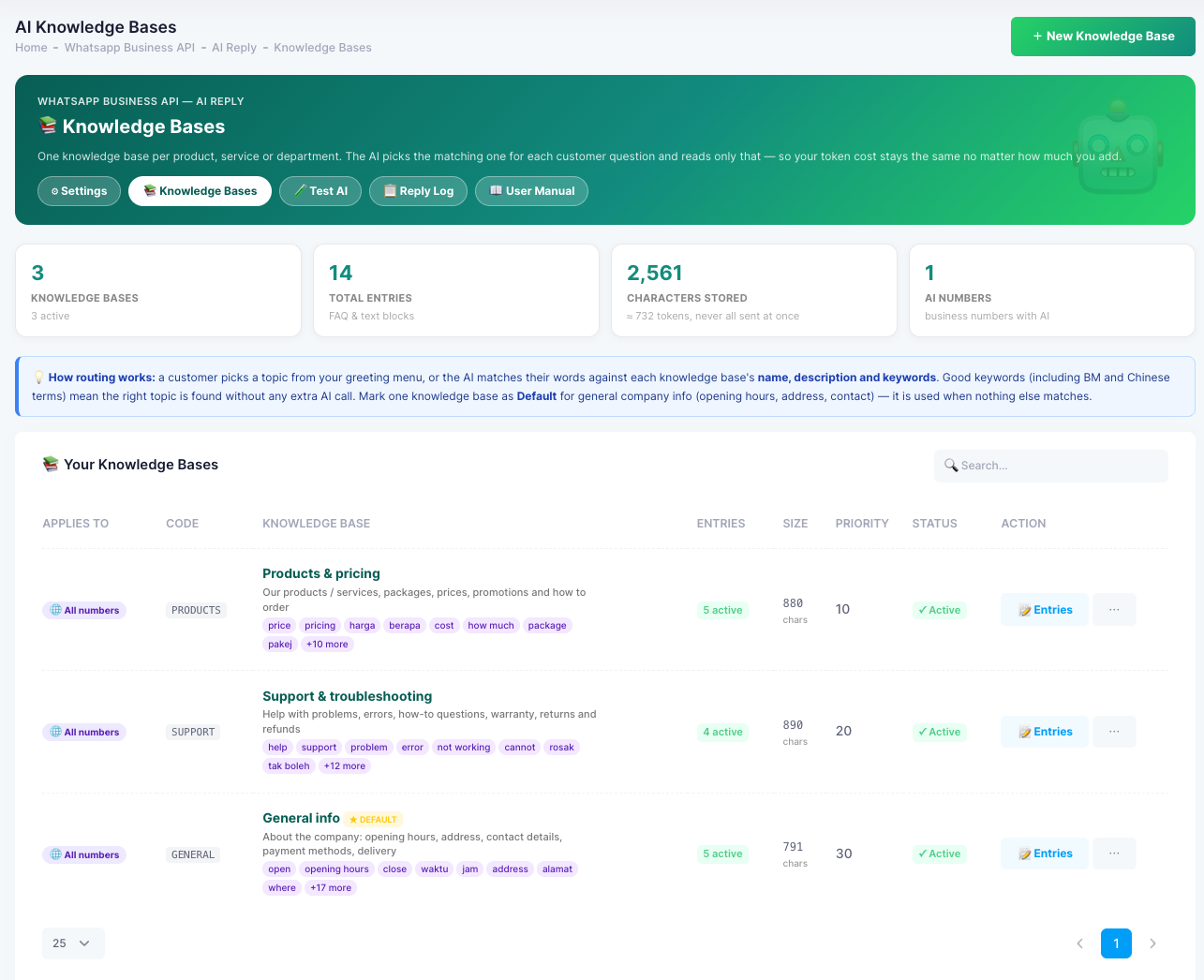
What each column shows
- Applies toWhich business numbers use this knowledge base — e.g. All numbers.
- CodeA short identifier, e.g.
PRODUCTS,SUPPORT,GENERAL. - Knowledge baseThe name (shown to customers when you insert the menu), a description of what it covers, and its keywords. The Default topic is marked DEFAULT.
- EntriesHow many active entries it contains.
- SizeHow much text is stored, in characters.
- PriorityThe topic order — lower numbers come first, e.g. 10, 20, 30.
- StatusActive knowledge bases are used by the AI.
- ActionEntries opens the entries for that topic; the … menu has more options.
Create a knowledge base
- 1
New knowledge base
Click + New Knowledge Base at the top right of the page.
- 2
Name & description
Give it a clear name customers will recognise in the menu — e.g. Products & pricing — and describe what it covers.
- 3
Keywords
Add the words customers use for this topic, in English, Bahasa Malaysia and Chinese.
- 4
Priority & numbers
Set the priority (menu order) and which business numbers it applies to. Mark your general company-info topic as Default.
- 5
Add entries
Save, then click Entries and add the content — see below.
Adding entries
Entries are what the AI actually answers from. There are two kinds:
- FAQ entriesA question and its answer — e.g. “Do you deliver to Johor?” with your exact answer.
- Text blocksLonger reference information — price lists, packages, policies, opening hours, outlet addresses, how to order.
Start from the ready-made starter kit of sample topics and FAQ templates and fill in your own details, or import many FAQs at once from a CSV file.
Tips for accurate answers
- One question or topic per entry — short, clear entries give the best answers.
- Write exact prices, dates and conditions — the AI never invents them, so anything missing leads to the fallback message.
- Include your booking, order or payment links where customers need them — the AI can share them.
- Keep the Default topic up to date with opening hours, address, contact details and payment methods.
- Every week, check the “couldn’t answer” list in the Reply Log and add the missing answers.
- After each change, try the question again in Test AI.