Chapter 42 · Part 5
Test AI Reply
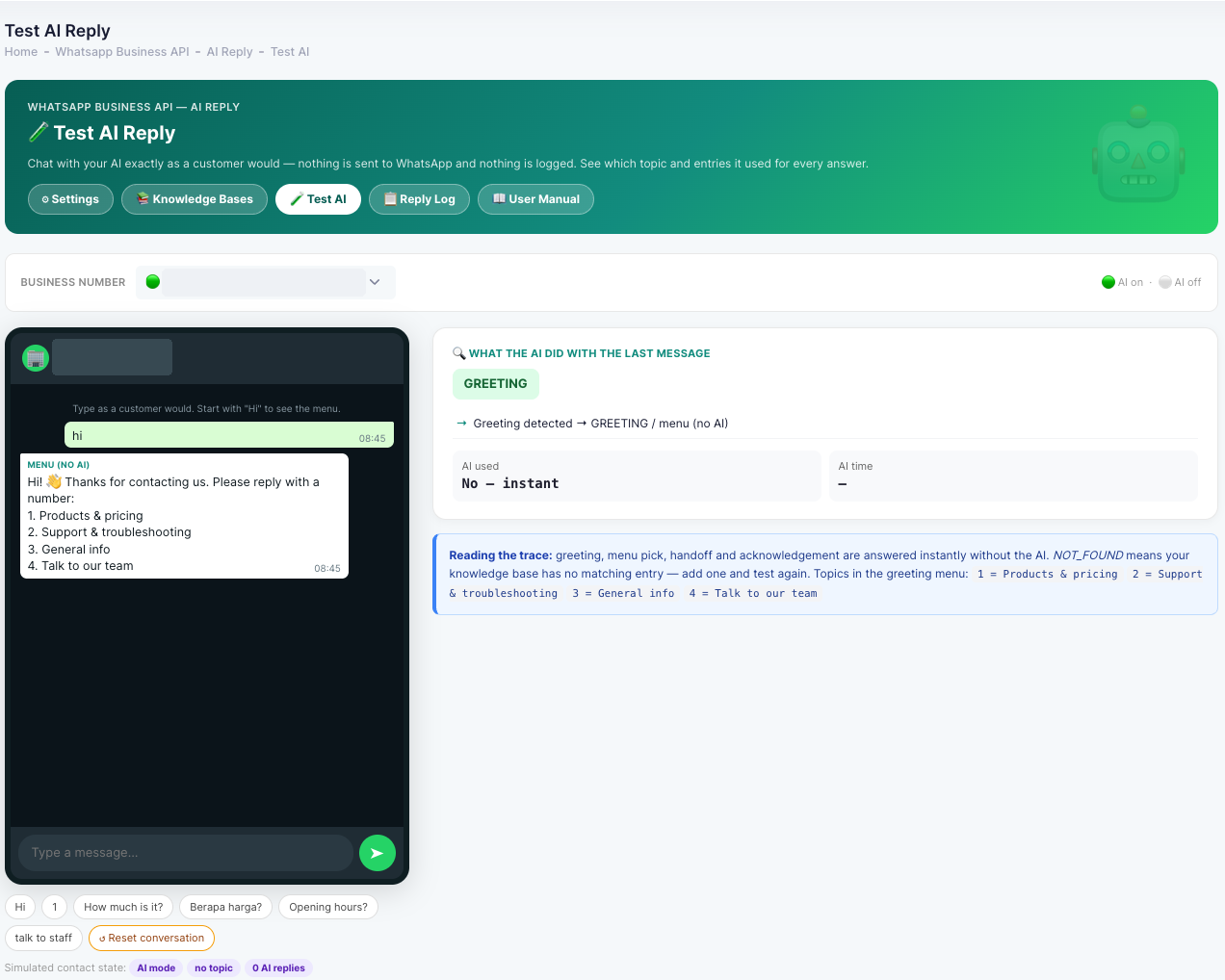
Chat with your AI exactly as a customer would — nothing is sent to WhatsApp and nothing is logged. For every message you see what the AI did and which topic and entries it used.
Opening the simulator
Go to WhatsApp Business API → AI Reply and click the Test AI tab. Choose the Business Number to test — the simulator uses that number’s settings and knowledge bases.
Run a test
- 1
Start with “Hi”
Type Hi to see your greeting and topic menu, exactly as customers will.
- 2
Try real questions
Type questions the way customers do, or use the quick buttons under the chat: Hi, 1, How much is it?, Berapa harga?, Opening hours? and talk to staff.
- 3
Read the trace
The What the AI did with the last message panel shows the result, how it was reached, whether the AI was used, and the AI time. For AI answers it also shows which topic and entries were used.
- 4
Fix & test again
If an answer is missing or wrong, add or correct the entry in Knowledge Bases, then ask the same question again.
- 5
Reset
Click Reset conversation to start again as a new customer.
Reading the result
GREETING / menu
A greeting or menu pick — answered instantly, without the AI.
AI answer
The AI found matching entries and answered. Check the topic and entries it used.
NOT_FOUND
Your knowledge base has no matching entry — the customer would get your fallback message. Add an entry and test again.
Handoff
The customer asked for a person — your handoff message is sent and the AI stops.
Acknowledgement
“ok”, “thanks” and similar — no reply is sent.
Below the buttons, Simulated contact state shows where the test customer is — for example in AI mode, which topic is selected, and how many AI replies they have had.